
In order to use this feature, you need to belong to a user group which has the permission to use Negative row POS action.
-
Press the Negative Row action tile.
-
Enter the sum for the open product and press Accept.
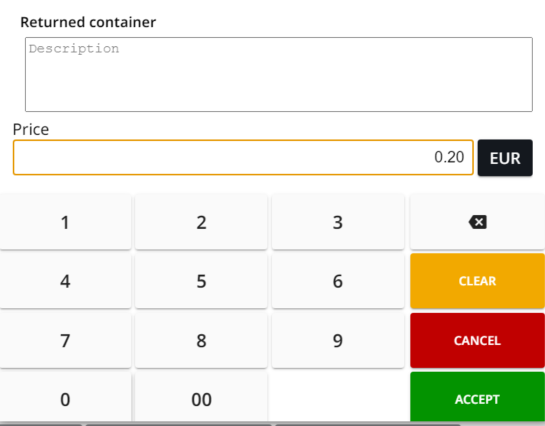
Entering a price for open product -
Basket rows are now updated. You can now continue adding products to the Basket or start payment.
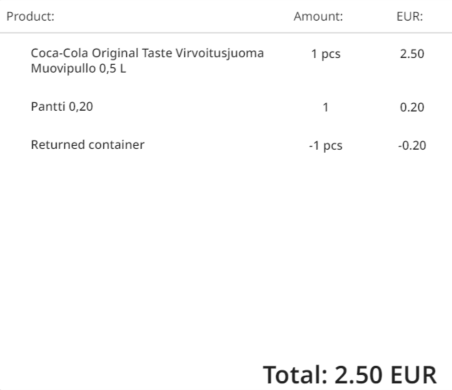
Basket with both products and negative rows