
It is possible to make refunds in the POS even when the original receipt is not available for some reason, by switching into refund mode. Refund mode can be activated by pressing a
-
Refund Mode tile from the POS menu, or
-
a separate Negative Row action tile, if it has been added to POS layout.
When making a refund without a receipt for a variant product, you need to select the attributes of the variant when you add the product to the Basket in Refund Mode.
Using the Refund Mode
-
Add the products you want to refund into the Basket either via product search, scanning the product’s barcode, or pressing a product tile.
-
Press Menu in the POS and then Refund Mode, or press a Negative Row tile, if available. Refund mode is switched on.
-
When in Refund Mode, the text You work in refund mode is displayed in the basket, and the Refund Mode tile is replaced by Standard Mode tile. Product prices are automatically negative in Refund Mode.
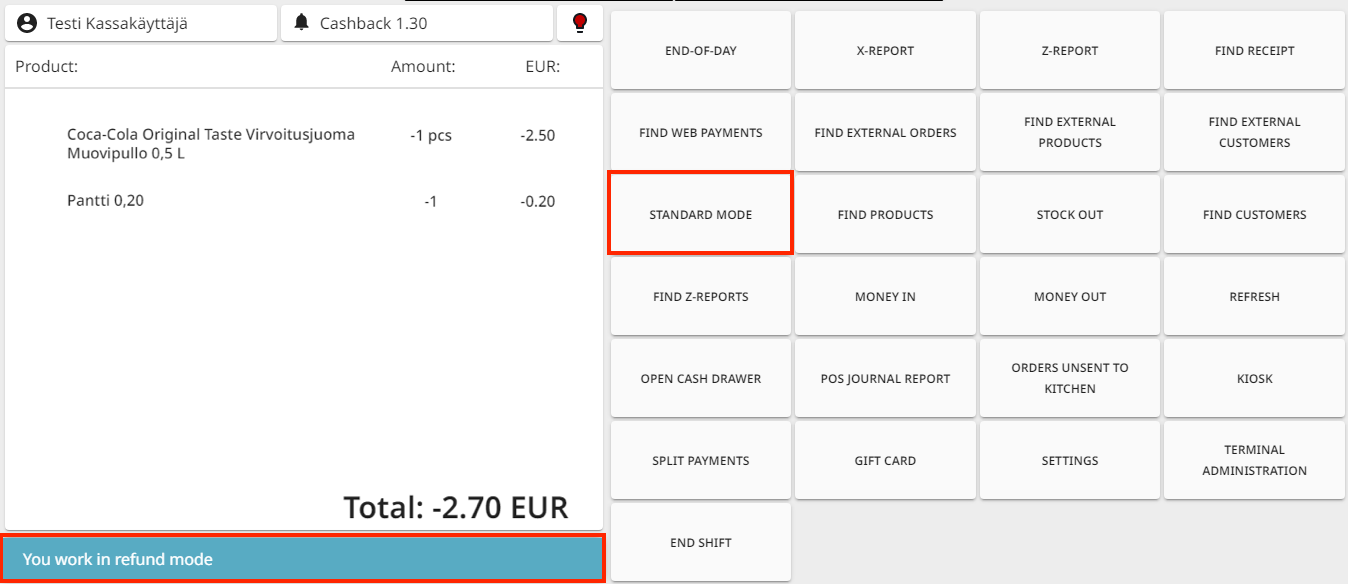
Refund mode
-
-
Finalize the refund by selecting the payment type you want to use to make the refund. Select also the refund reason code, if required.
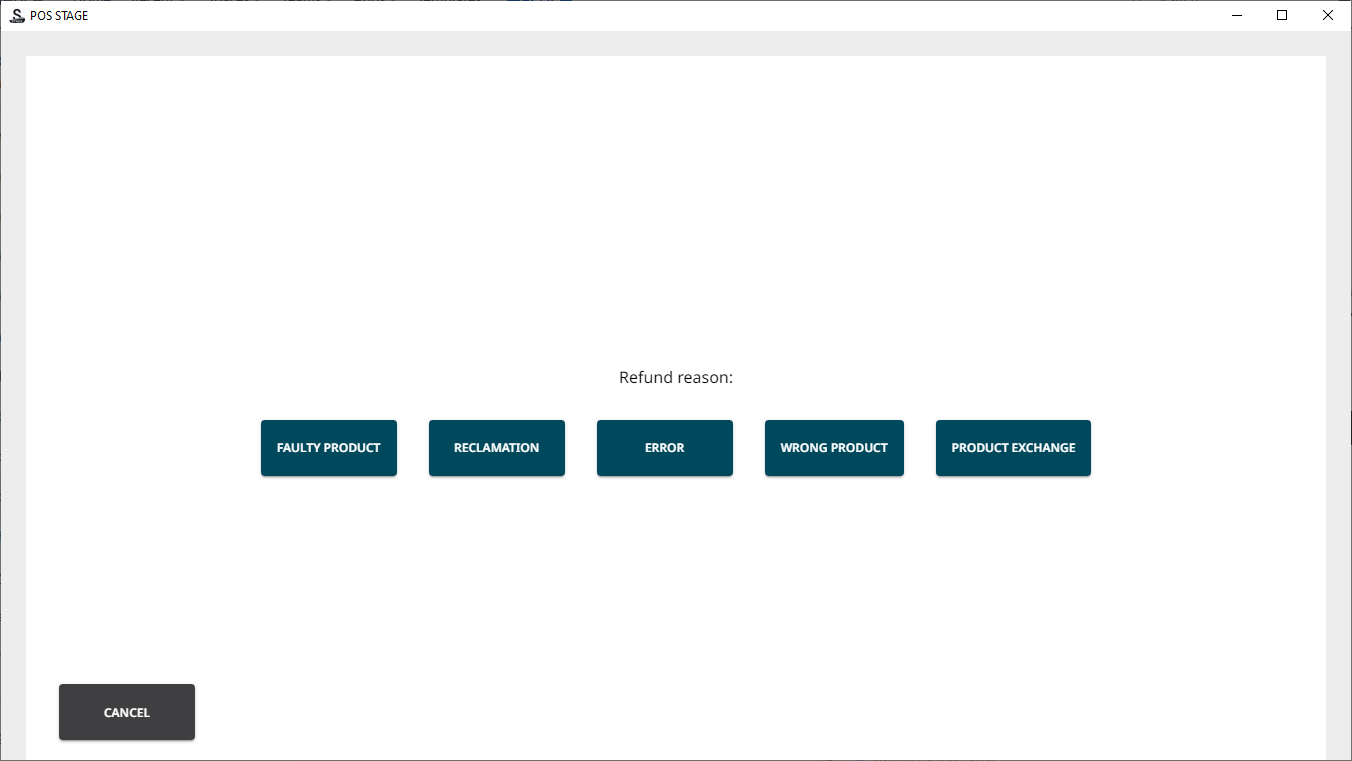
Refund reason codes